After a driver update on my Surface Pro 8, I discovered that it finally supports VRR (Variable Refresh Rate).
This means the display’s refresh rate is no longer fixed at 60/120 Hz, but dynamically adjusts according to the rendering speed of the content. This brings lower latency and provides smoother visuals when game frame rates fluctuate.
Although the Surface Pro isn’t ideal for running demanding games directly, it’s great for streaming games running on a high-performance PC. With VRR support, it can slightly reduce streaming latency and improve visual smoothness.
When I use Moonlight on my Surface Pro (Intel Iris Xe) and Sunshine on the PC (Radeon RX 9070 XT) to stream content from the PC to the Surface Pro, I encountered some issues:
- When the game on the PC was in complex scenes with frame rates between 48~115 fps, I could see smooth and tear-free visuals on the Surface. I was very satisfied.
- However, when the game on the PC ran in simpler scenes with frame rates exceeding 115 fps, the Surface would not only experience frame drops but also screen tearing.
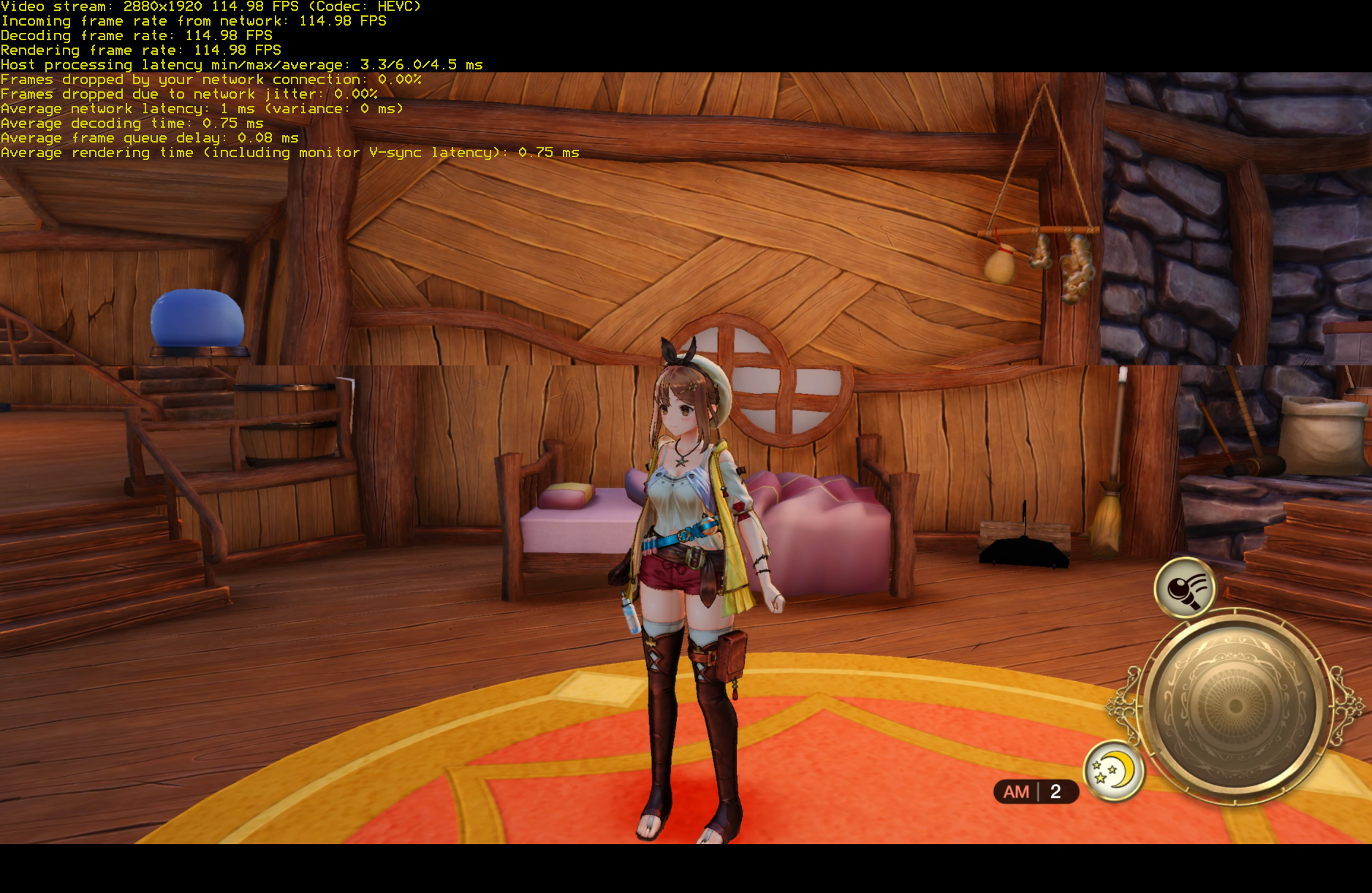
VRR itself is not a silver bullet: when the game’s frame rate (fps) is approximately equal to or higher than the display’s refresh rate (Hz), the displayed image will exhibit tearing. This is because VRR disengages when frame rate ≥ refresh rate. My Surface Pro’s screen is 120Hz, while the PC screen’s refresh rate is 120/144Hz.
VRR is quite complicated, so how do you set it up correctly?
How to Properly Configure VRR
Step 1: Enable VRR on the Surface Pro
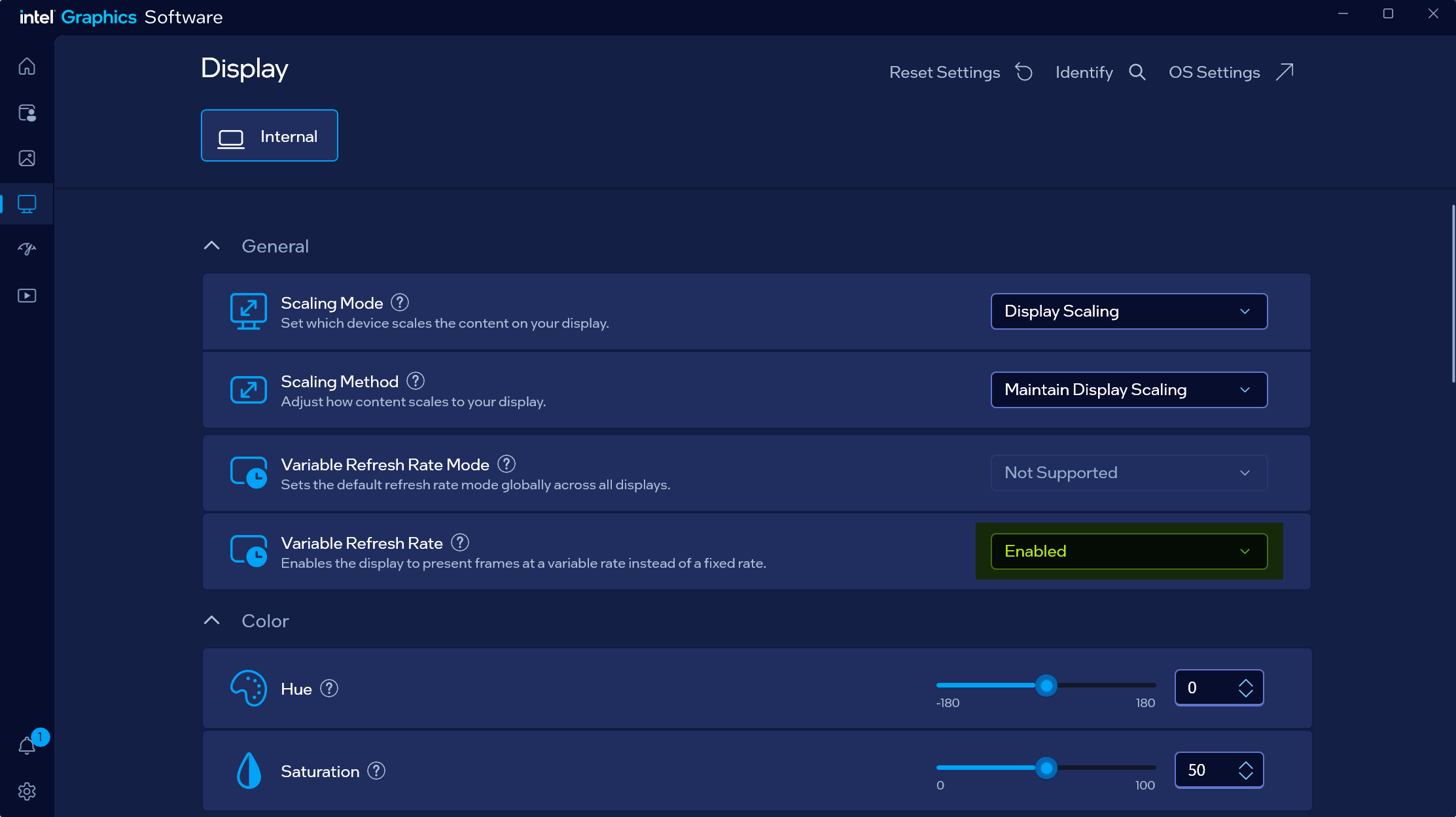
First, enable VRR on the machine running Moonlight — the Surface Pro.
My Surface Pro uses an Intel Iris Xe integrated graphics card, so we go into Intel’s graphics control panel to enable VRR:
Step 2: Enable VSync on the Surface Pro
This is to prevent screen tearing on the Surface Pro when the PC’s output frame rate (fps) is approximately equal to the Surface Pro screen’s refresh rate.
Then, we go into the graphics control panel to enable VSync:
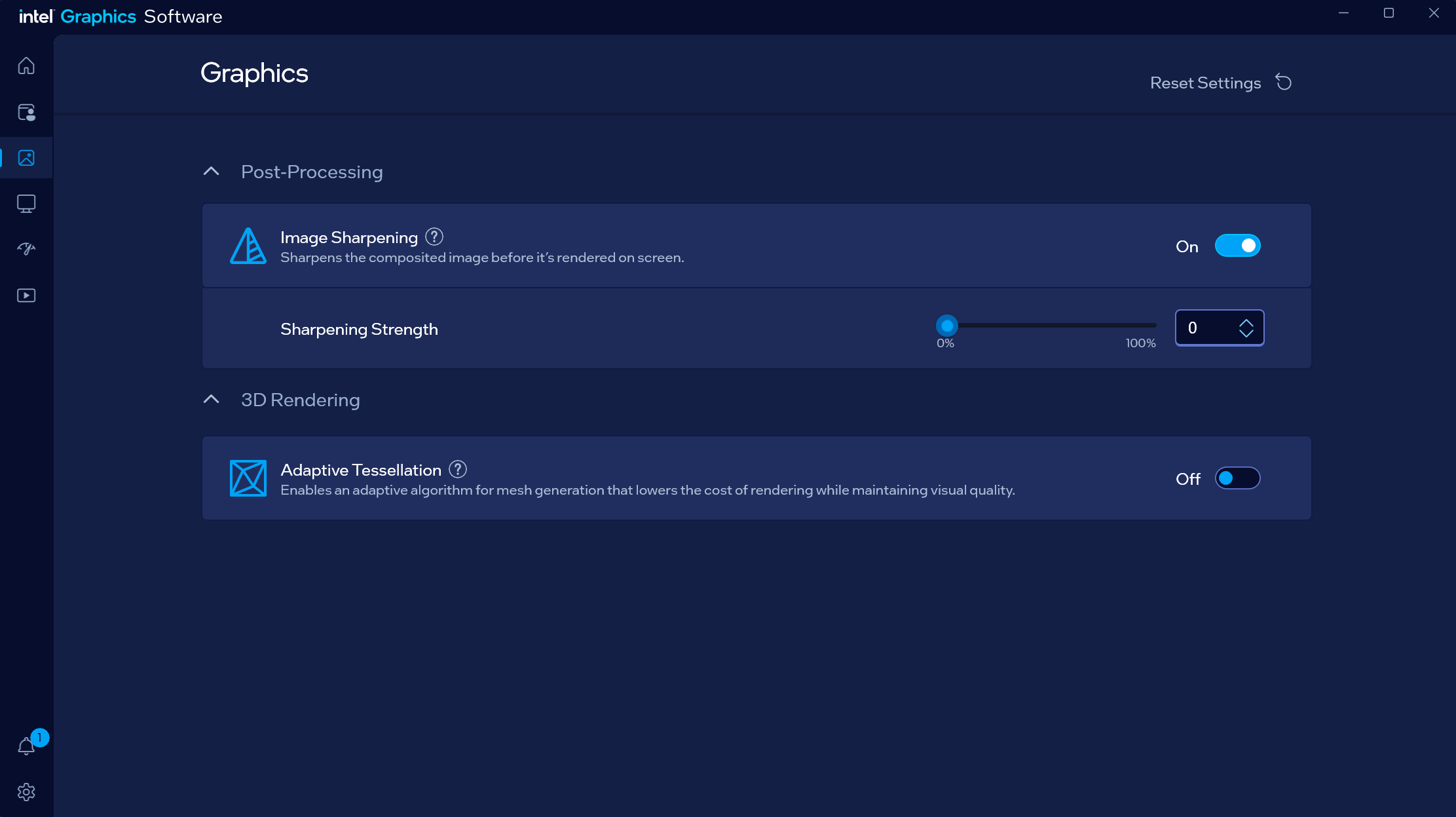
Huh? There’s no VSync option here. It seems Intel’s genius engineers forgot to add the VSync setting for older integrated graphics in the new control panel.
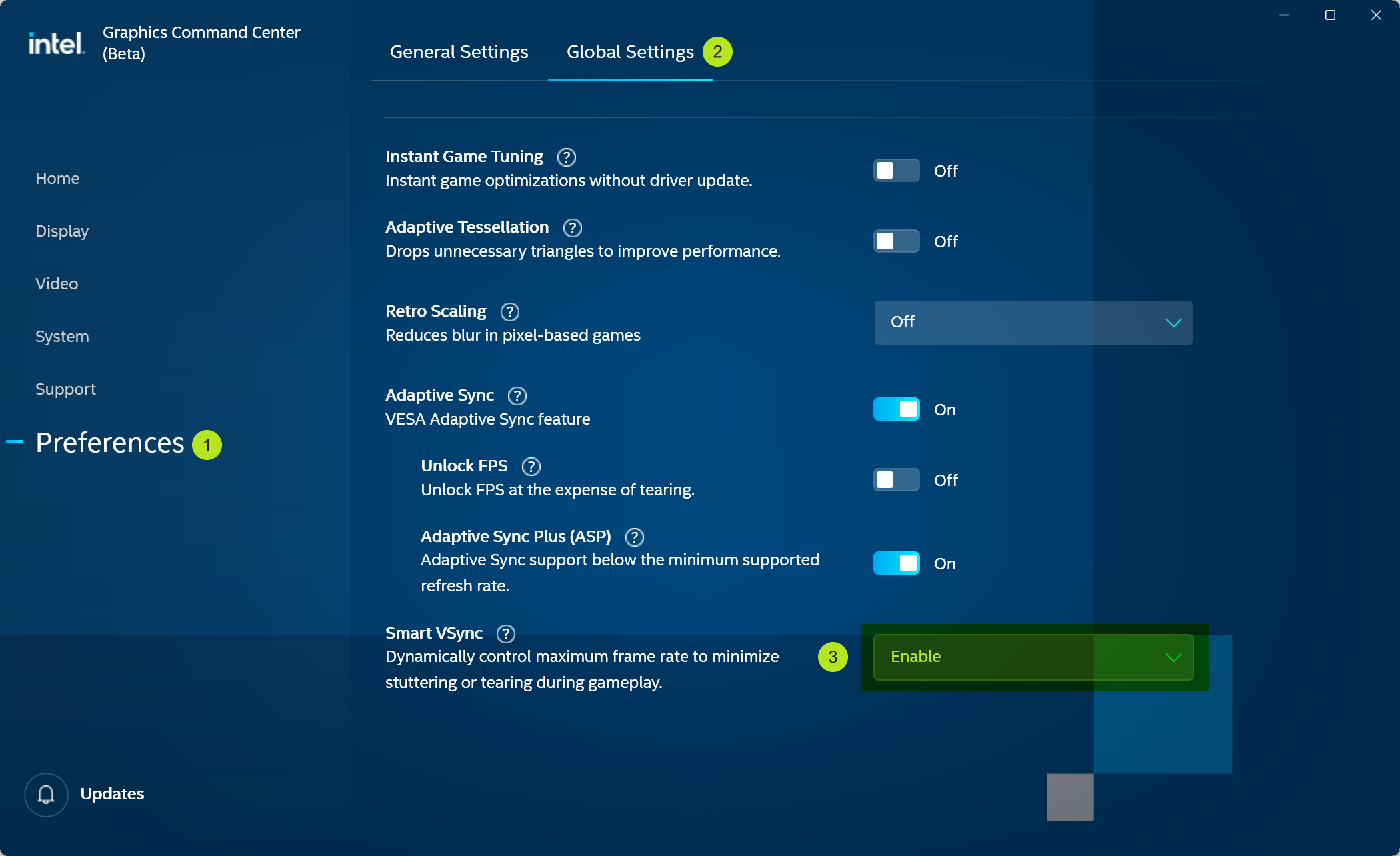
Fortunately, the old version of the graphics control panel still has this setting. We can download the legacy Intel Graphics Command Center from the Microsoft Store: Intel® Graphics Command Center
Then enable Smart VSync:
Step 3: Configure Moonlight on the Surface Pro
Open Moonlight and go to settings. Set the frame rate to match the PC’s refresh rate, then disable V-Sync.
This is because Moonlight’s V-Sync (vertical sync) will disable VRR under Windows. We have already enabled Smart VSync on the integrated graphics, so there’s no need to enable it again in Moonlight.
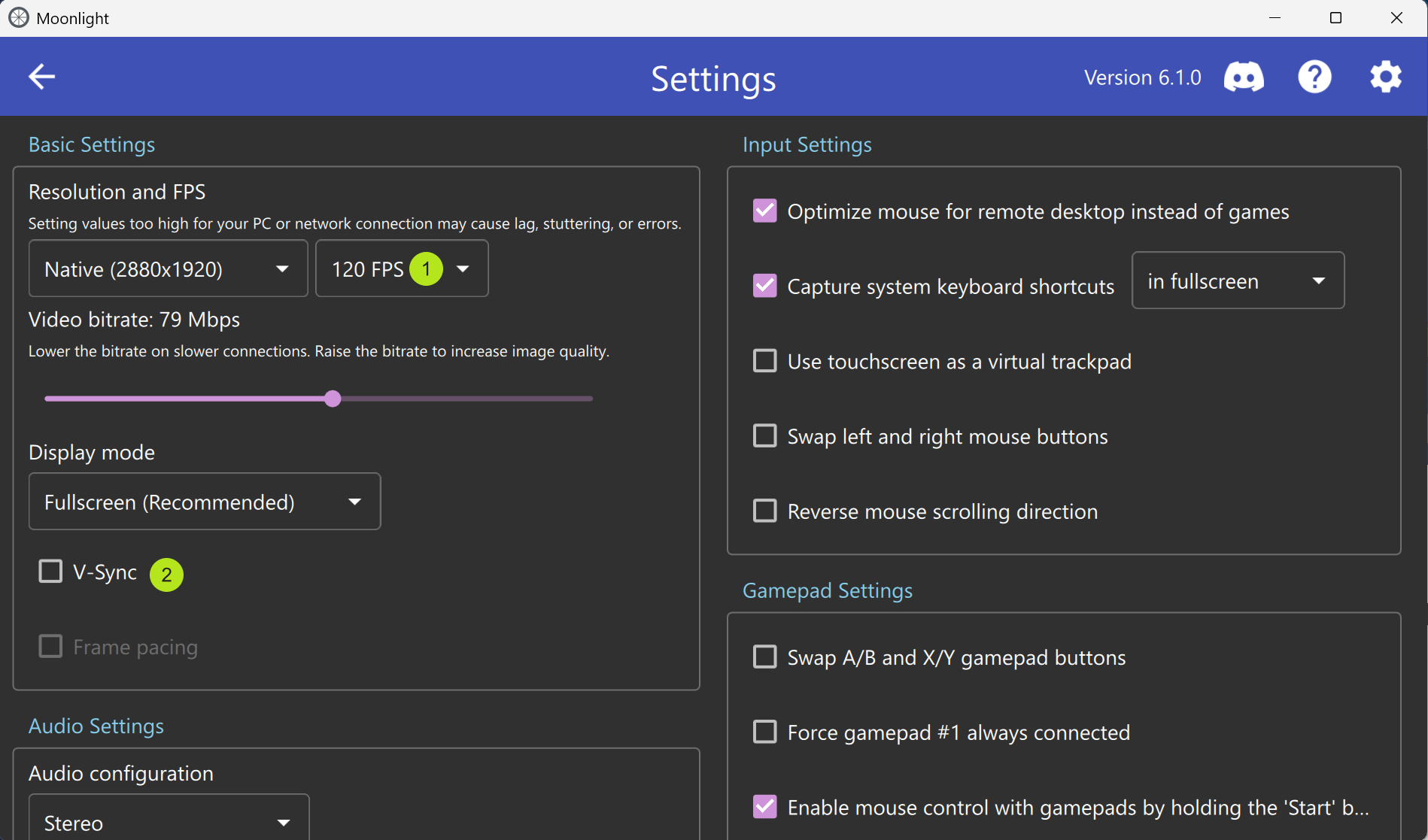
You can also adjust the encoder here, using HEVC / AV1 hardware encoder/decoder to improve video encoding/decoding efficiency and reduce CPU load.
With that, the Surface Pro settings are complete. Next, we’ll move on to the PC running Sunshine.
Step 4: Ensure the PC’s Refresh Rate ≤ Surface Pro’s Refresh Rate
My Surface Pro’s refresh rate is already set to the maximum 120Hz, so we need to set the PC‘s refresh rate to ≤ 120Hz. I set it to the same 120Hz as the Surface Pro.
This is to prevent the PC’s output frame rate (fps) from exceeding the Surface Pro screen’s refresh rate, which would cause frame skipping/dropping.
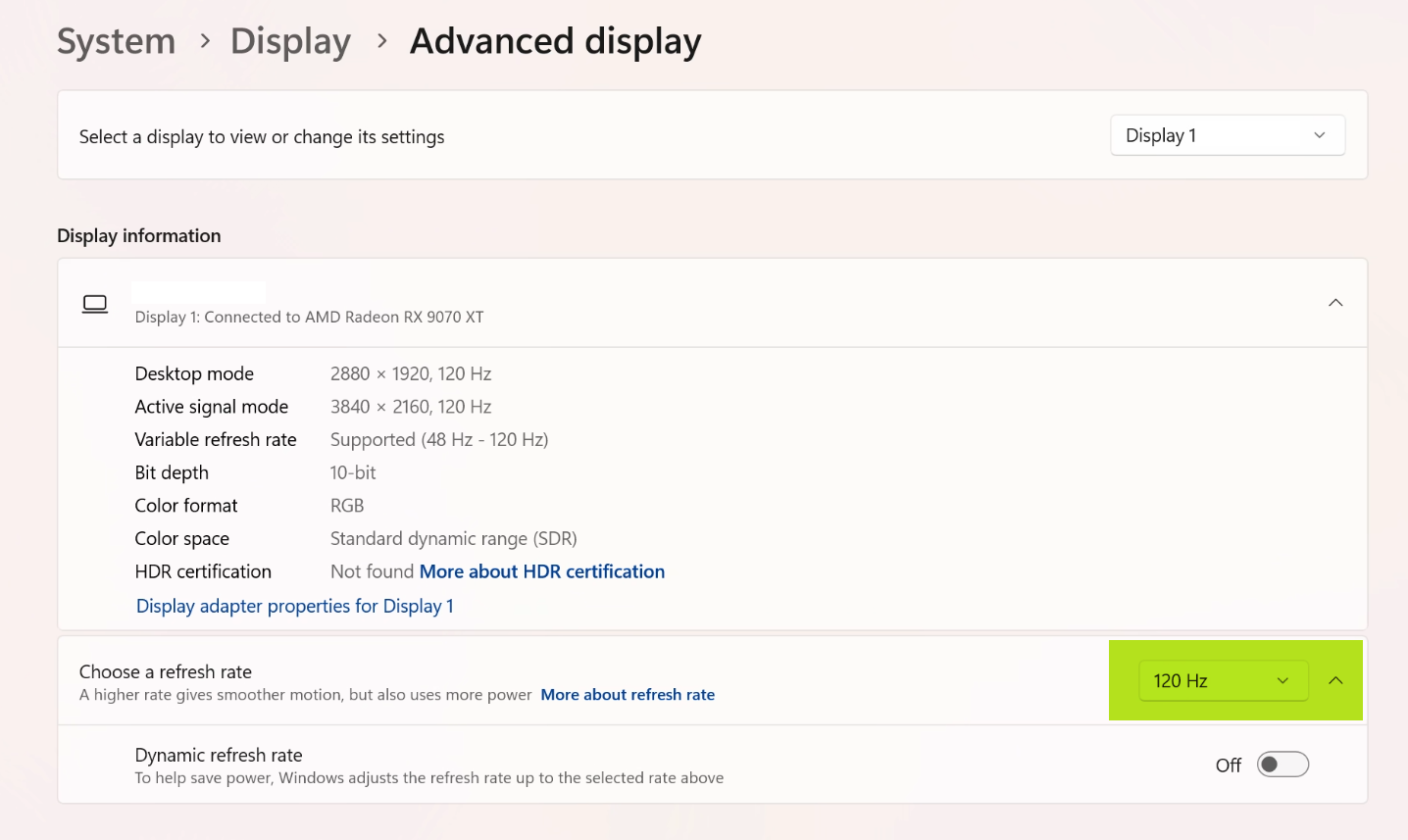
The Dynamic refresh rate option below is a power-saving feature, not VRR. Keep it disabled.
Step 5: Limit the Game’s Maximum Frame Rate and Disable the Game’s Built-in VSync
Disabling the game’s built-in VSync allows the game to output dynamic frame rate content. Limiting the game’s maximum frame rate ensures the highest frame rate does not exceed the screen refresh rate, avoiding frame skipping/dropping.
First, go into the game settings and turn off the game’s built-in VSync feature (if available). Here’s an example using Atelier Ryza:
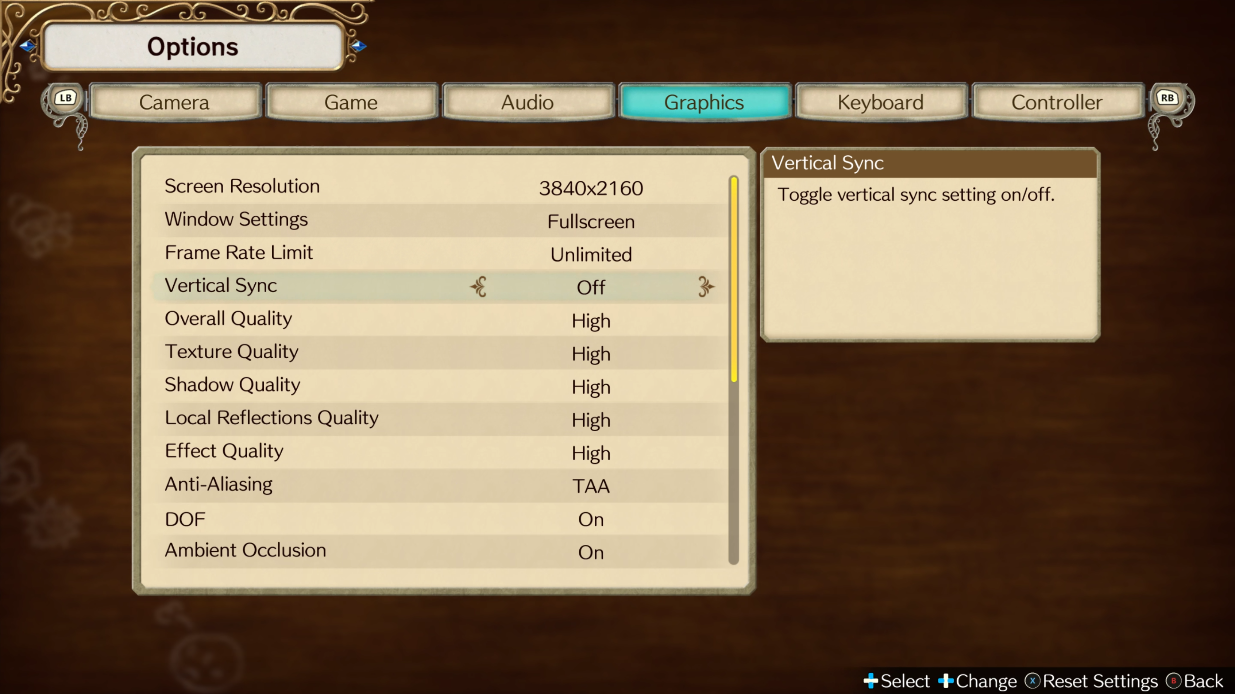
If the game has a built-in frame rate limiter, set it to match the PC display’s refresh rate, or simply disable the game’s frame rate limit.
I prefer to disable the game’s frame rate limit (if possible) and use the PC’s discrete graphics card’s frame rate limiting features. For example, with an AMD graphics card, you can use Frame Rate Target Control / Radeon Chill to limit the frame rate:
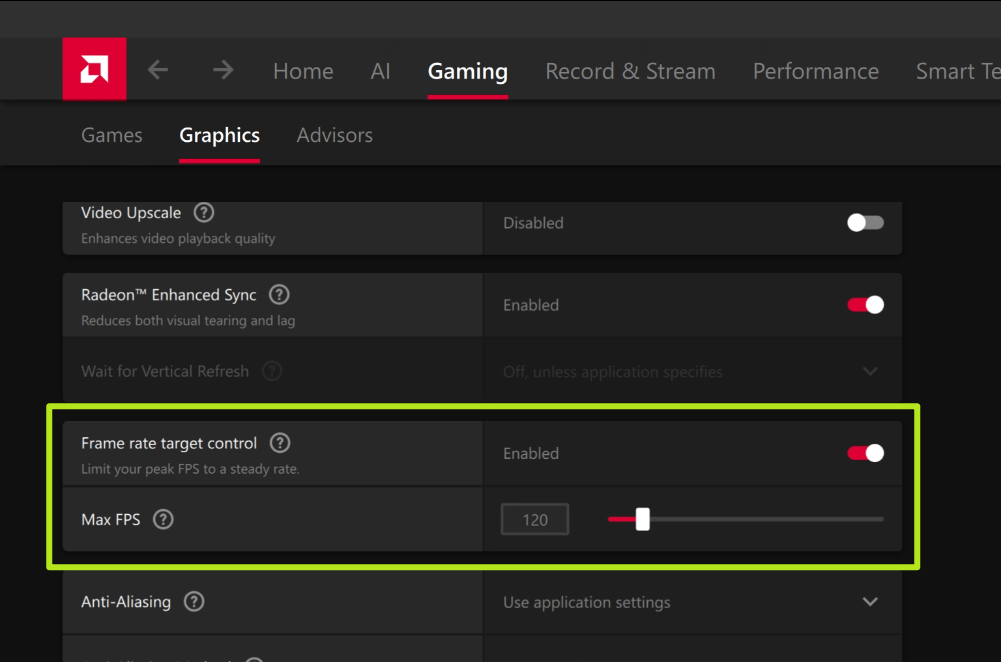
Different frame limiting methods may vary in latency or frame time stability. Feel free to compare and experiment.
When VRR is enabled, the generally accepted best practice is to cap the frame rate slightly below the display’s refresh rate. For example, with a 120Hz refresh rate, we can limit it to 115 fps to prevent screen tearing and reduce latency.
However, since we have already eliminated tearing on the Surface Pro by enabling Smart VSync, and considering that many games are designed around multiples of 60 fps, we can also set the maximum frame rate to match the display’s refresh rate: 120 fps, at the cost of slightly higher latency due to VSync.
After completing the above settings, run Moonlight in fullscreen on the Surface Pro and run the game in fullscreen on the PC. Now, even if the game’s frame rate fluctuates, the visuals should remain smooth; and when the frame rate approaches the display refresh rate, there should be no tearing.
In Moonlight, you can press Ctrl + Alt + Shift + S to show statistics and monitor frame rate changes. You can also use your phone’s slow-motion camera to record the screen and observe in slow motion whether frame display times are stable and if there is any skipping, dropping, or tearing.
Additionally, if your Moonlight’s laptop uses an Intel Wi-Fi card and experiences frame drops/audio glitches every 10 minutes or so, refer to: Fixing Intel Wi-Fi Stuttering on Latest Driver.
Coxxs
This article (https://dev.moe/en/3496) is an original work by Coxxs. Please credit the original link when reposting.