Today, the highly anticipated new Firefox interface (codenamed Nova) has finally gone live in the stable release of Firefox 157!
After trying it out, I found that the various bugs from the beta testing phase have mostly been fixed, and the ugly rounded corners for web pages from the early Nova design have been removed. Although I don’t really like this rounded design and the mysterious gradient colors, it somewhat moves me to be able to use such properly functioning software in an era dominated by AI slop.
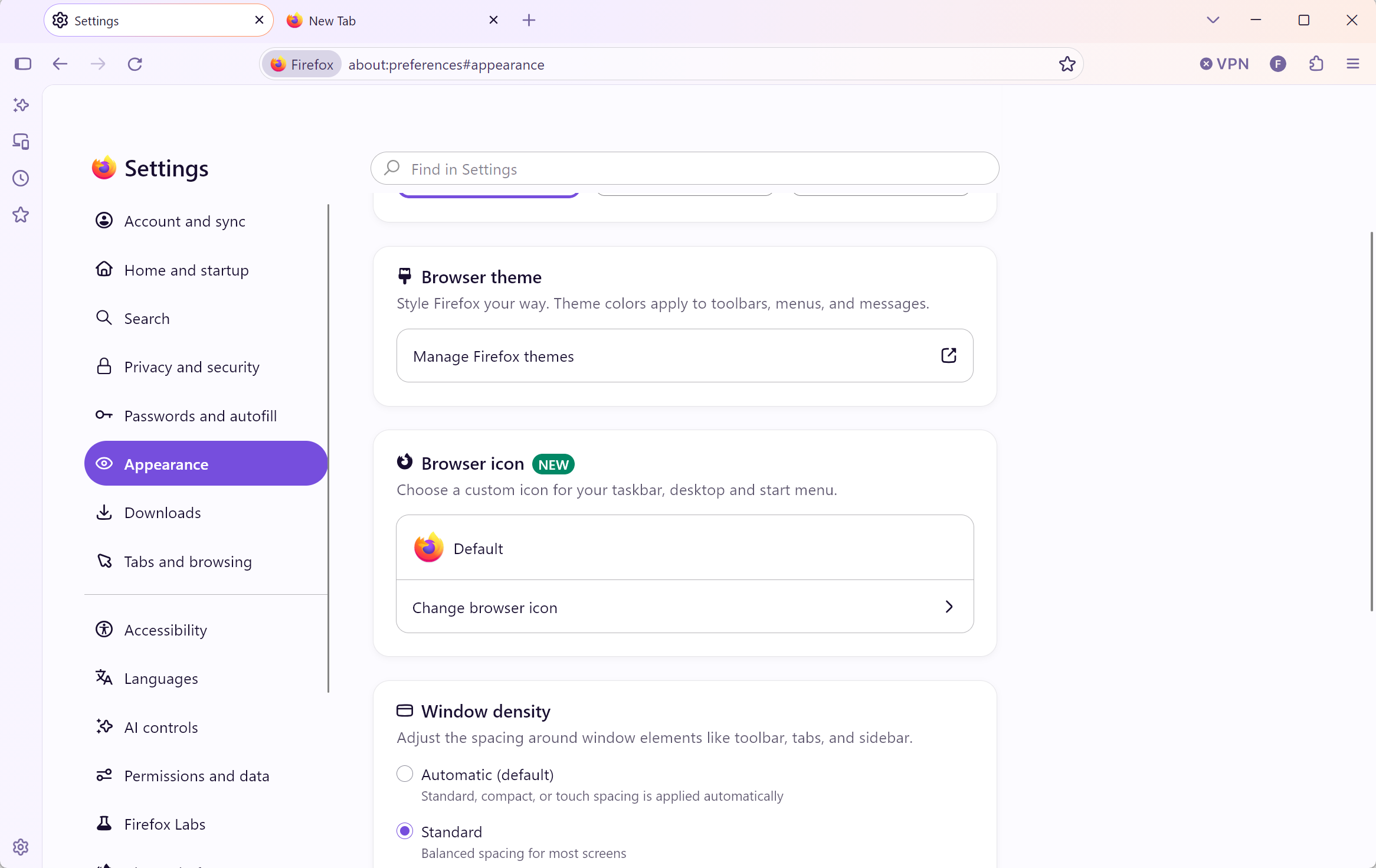
Moved as I am, let’s first change the theme to get rid of this gradient… Hmm? Right below the theme settings, there’s a new feature for customizing the browser icon? Out of curiosity, I clicked into it…
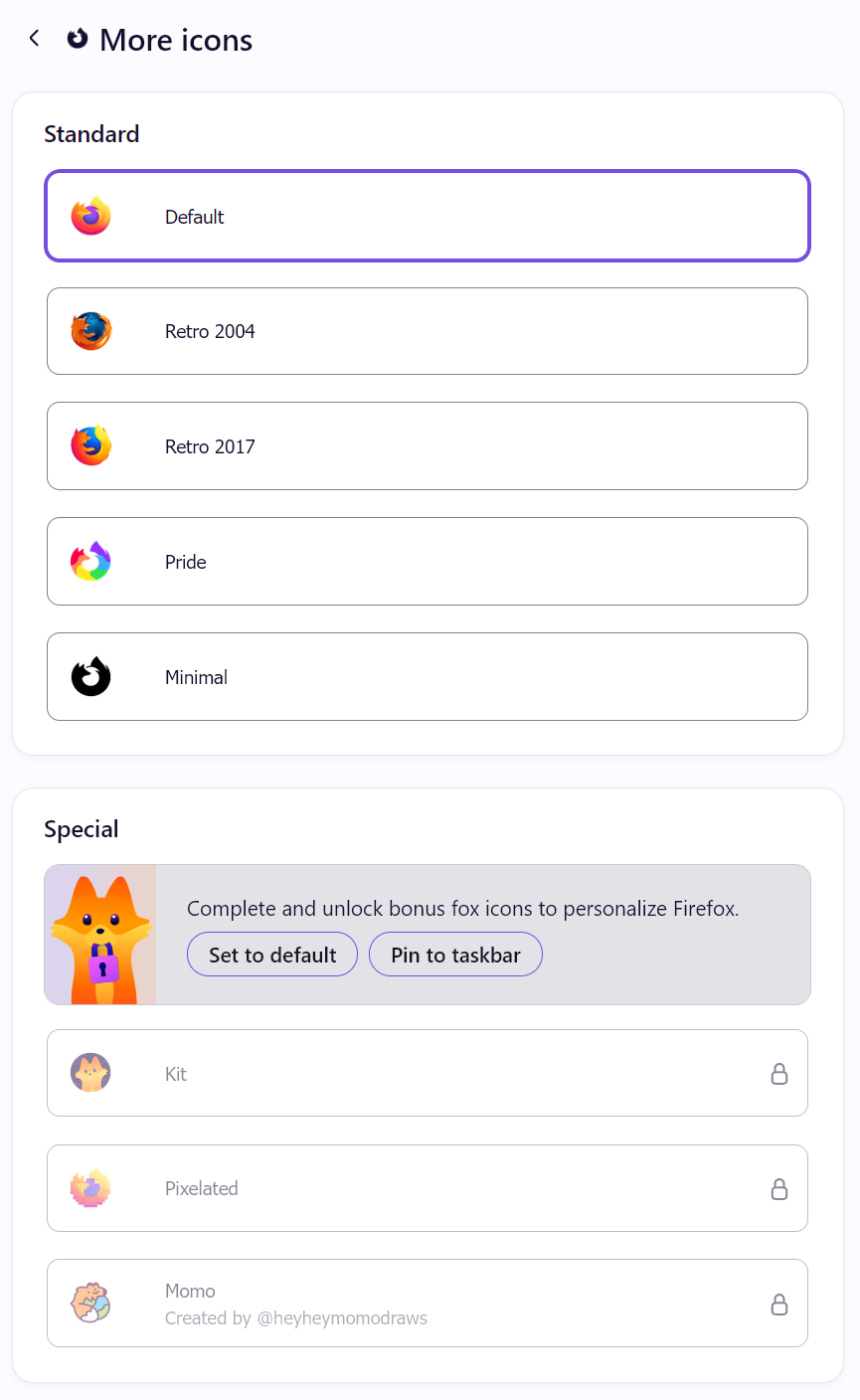
Good heavens, I actually have to complete two little tasks to unlock the special icons. Is this a marketing trick Mozilla learned from Temu?
Obviously, I don’t want to pin Firefox to the taskbar, much less set it as my default browser. Is there any way to bypass this “paywall” and use these new icons?
@Grok is this real?
Since changing icons is a recently added feature, there isn’t much information online. Or rather, normally no one would have the free time to insist on bypassing these two small tasks just to change an icon…
This kind of scenario is perfect for letting AI investigate. Firefox is open-source software, so we can directly have an AI with internet access read the code to see how these icons are locked. Since we are bypassing a “paywall”, let’s let Grok, which has lower ethical constraints, give it a try.
@Grok I want to use the newly added feature in Firefox to change the browser icon, but some special icons require completing tasks to unlock, displaying “Complete and unlock bonus fox icons to personalize Firefox.”.
Please help me find a way to use these special icons without doing the tasks. Also, provide a code snippet that can be pasted in F12 to unlock the icon locks on the settings page, which can more reliably trigger the icon change process.
Grok quickly read the Firefox source code and found a method. For example, we can paste the following code in the Developer Tools (F12 → Console) to unlock these icons:
document.querySelectorAll('[data-l10n-id*="appearance-browser-icon-"][disabled], .icon-option[disabled], button[disabled][data-icon-id]').forEach(el => { el.disabled = false; el.removeAttribute('disabled'); el.classList.remove('disabled', 'locked'); });
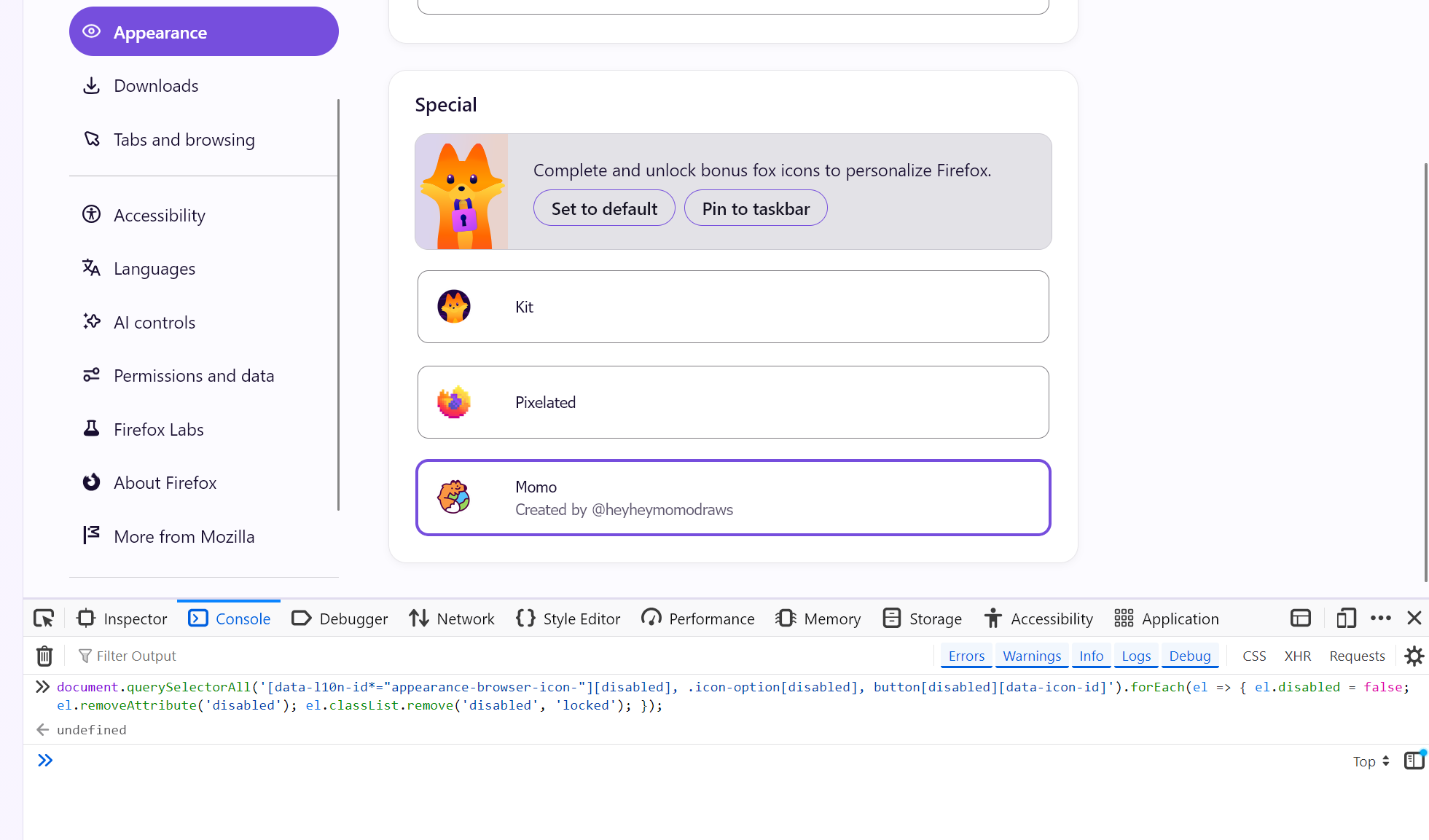
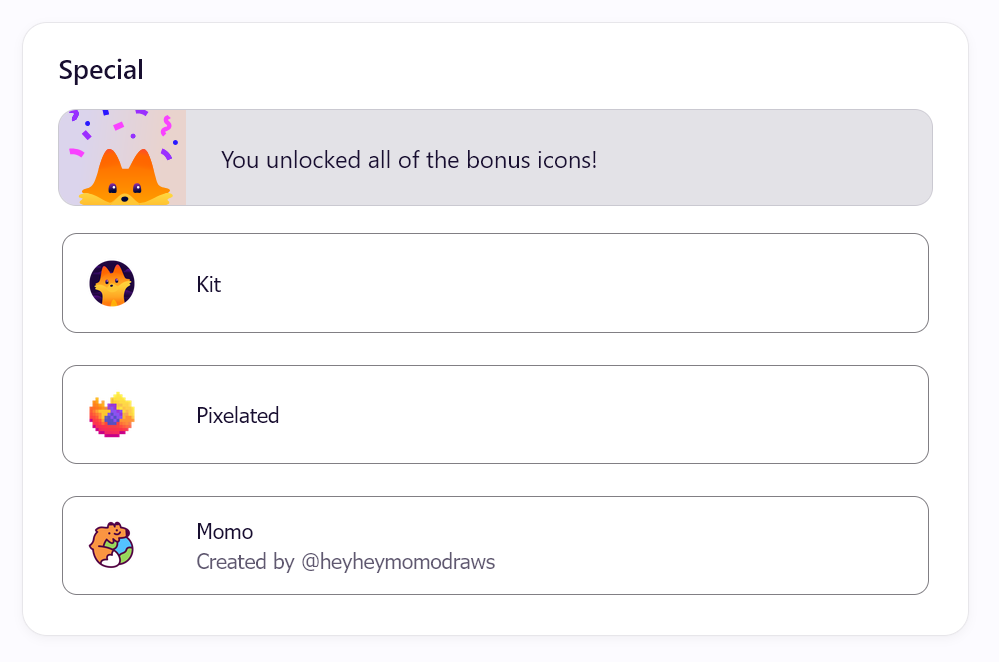
The Momo icon looks really nice, and AI is really useful too.
In fact, recently when I was developing browser extensions, for some behavioral details that the browser itself lacks documentation for, I would also let the AI look directly at the browser’s source code to find the answers to the problems. (For example, in Firefox’s wheel event, how does the order of reading e.deltaY and e.deltaMode affect their values?)
What if there were no AI in the world…
What if there were no AI in the world, how would one bypass Firefox’s restrictions to unlock these icons?
First, let’s open DevTools (F12) and see if there are any clues around the special icons. For instance, the “Pin to taskbar” button’s state should change after the user clicks it and actually pins the browser to the taskbar.
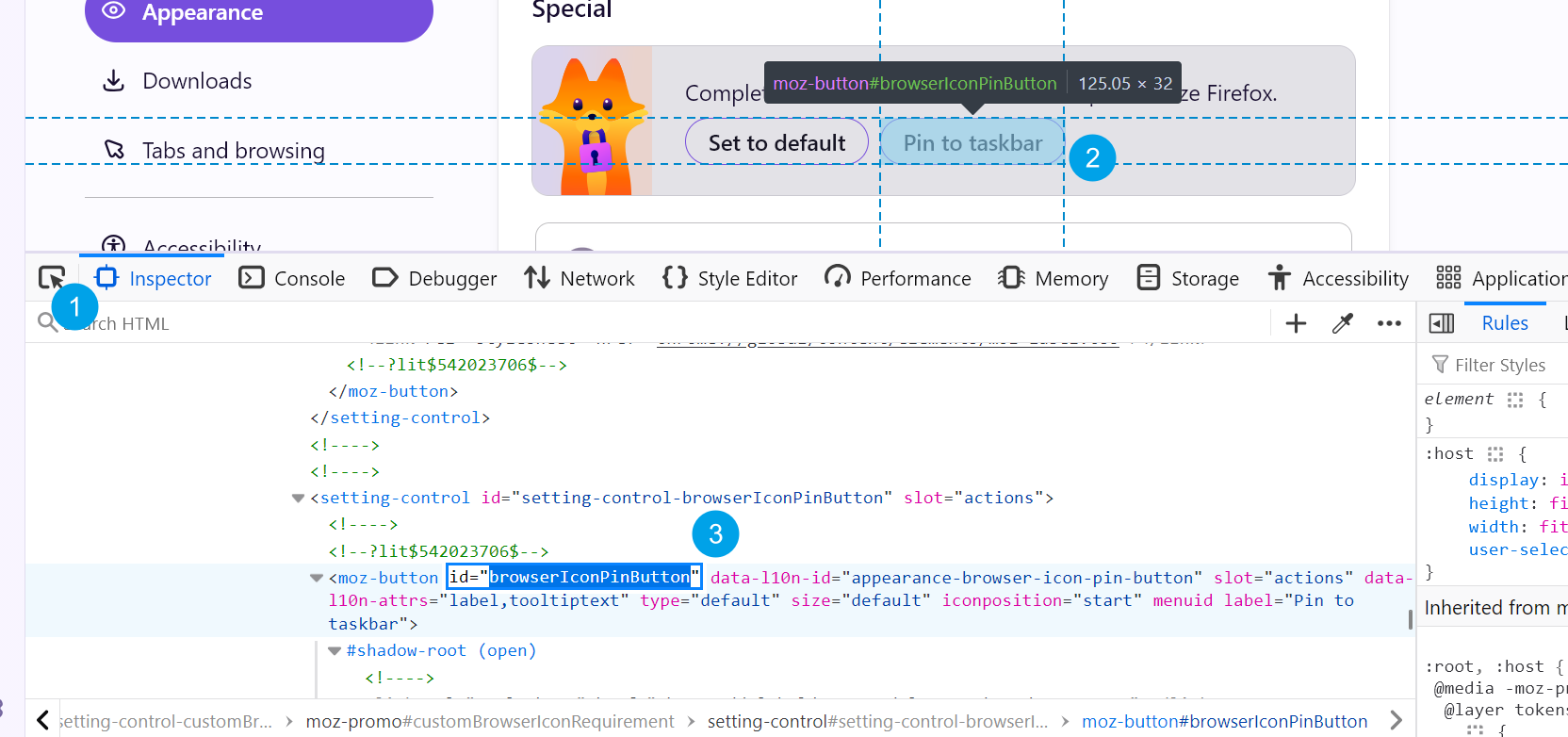
Clicking the element picker tool and selecting this button reveals that it has an id of browserIconPinButton. In order to change the state of this button, the browser probably uses this id to select it in the JavaScript code.
We might as well search for browserIconPinButton in Debugger → Search, and we quickly find the relevant code.
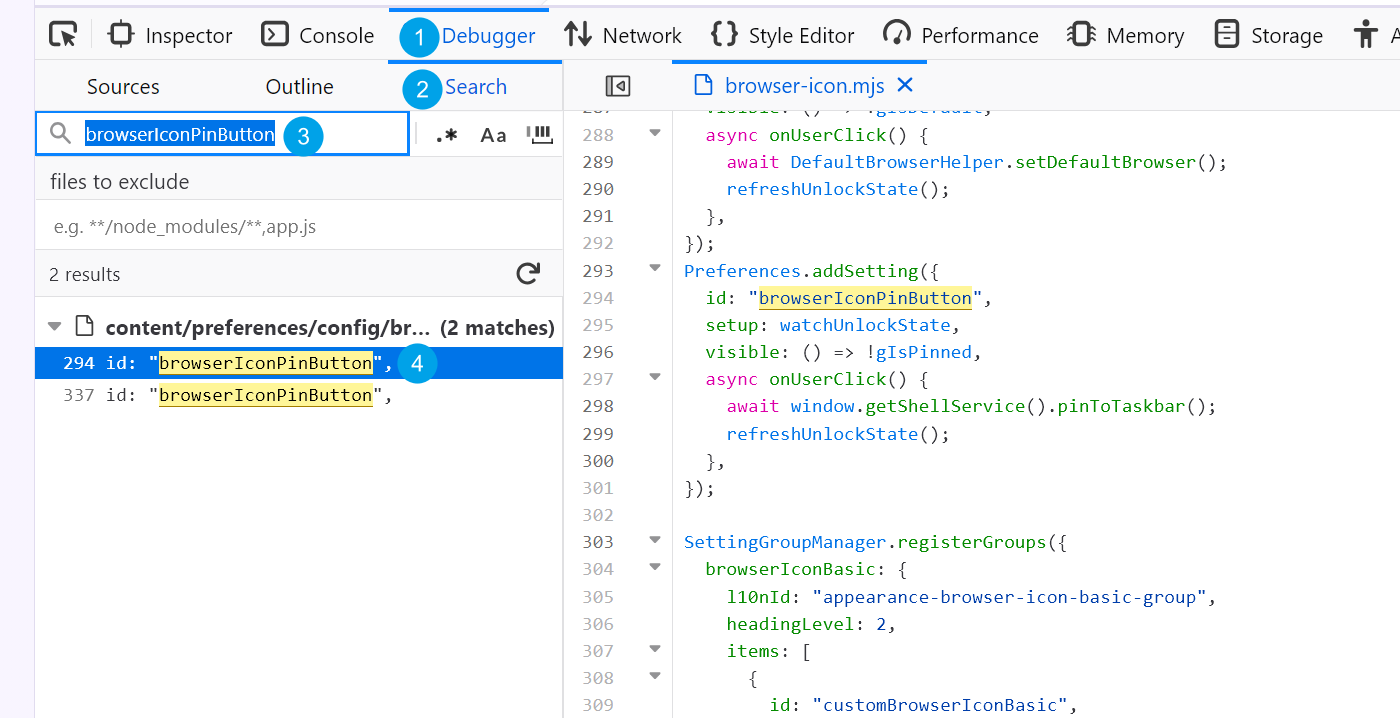
In the code on the right, you can see that after the user clicks the “Pin to taskbar” button, Firefox calls the refreshUnlockState() function to refresh the unlock state of the special icons. Let’s find this function and see its logic.
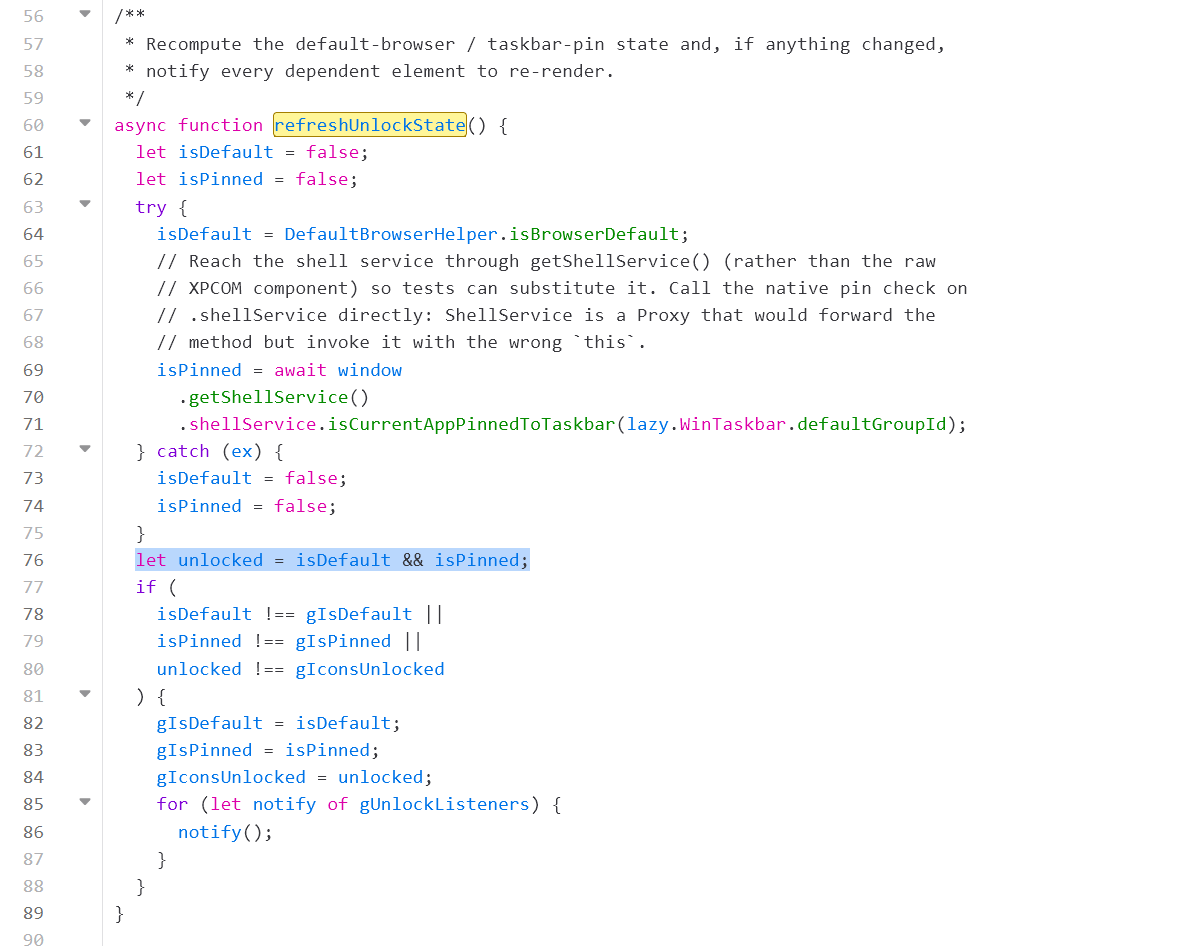
The unlocked here is the key to determining whether the icons are unlocked.
We can set a breakpoint on this line and refresh the page. After successfully hitting the breakpoint, open the Console, manually assign true to both the isDefault and isPinned variables (pretending we have already set Firefox as the default browser and pinned it to the taskbar), and resume page execution.
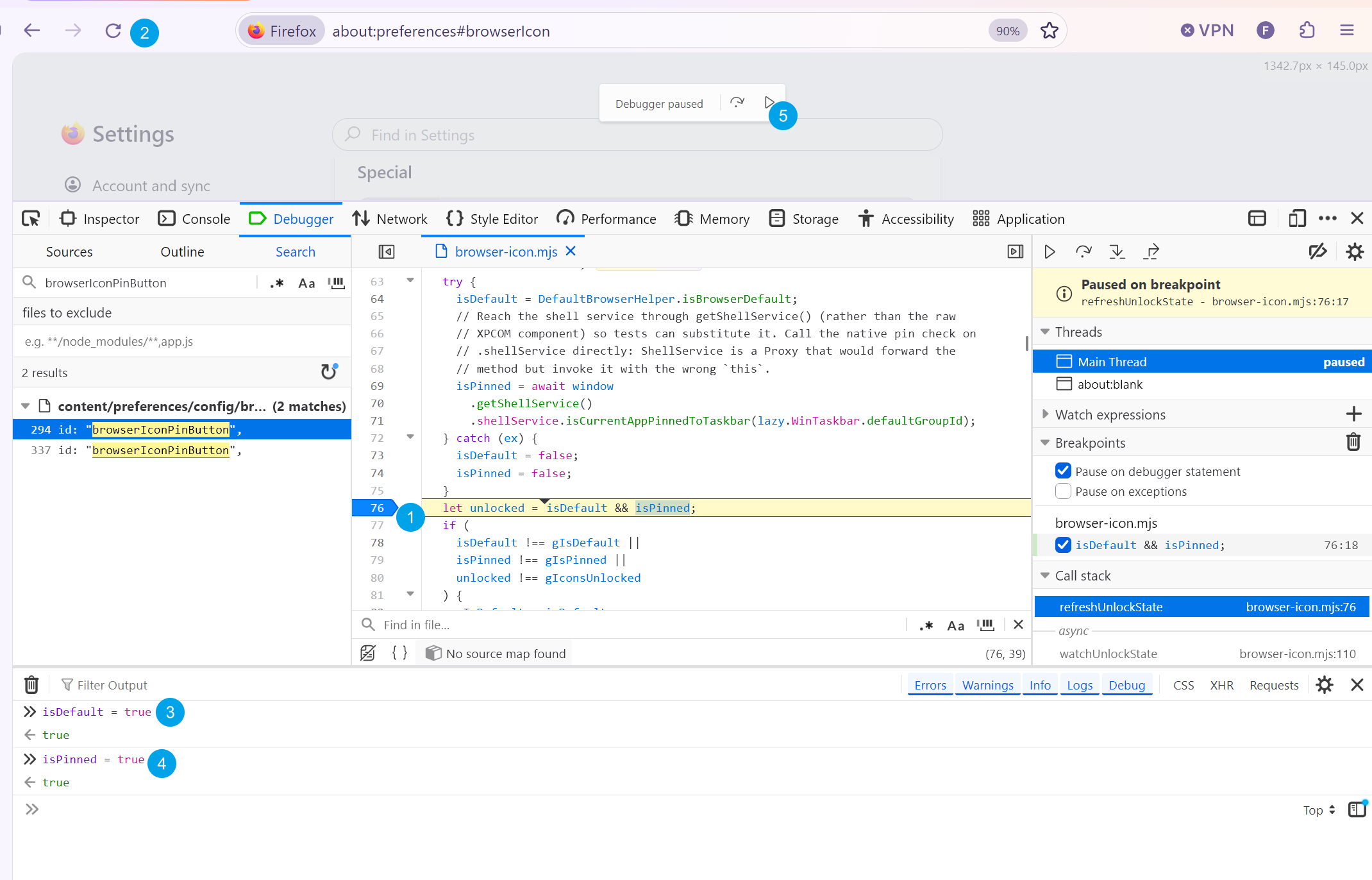
After clicking to resume page execution, we find that the assignment just now allowed us to successfully bypass the restrictions and activate the special icons!
There’s also a little trick here: besides setting a breakpoint for manual assignment, we can also right-click on line number 76, select Conditional Breakpoint, and then set a conditional breakpoint like this:

isDefault = true; isPinned = true; 0After a successful setup, the conditional breakpoint location will turn yellow. The function of a conditional breakpoint is that the program will only pause execution here if the statement we set evaluates to true.
We simply took advantage of the feature that a conditional breakpoint executes a statement evaluation at the breakpoint, forcibly assigning true to the two variables here. Because we wrote ; 0 at the end, the execution result of this code is always 0 (false), meaning it will never pause execution regardless.
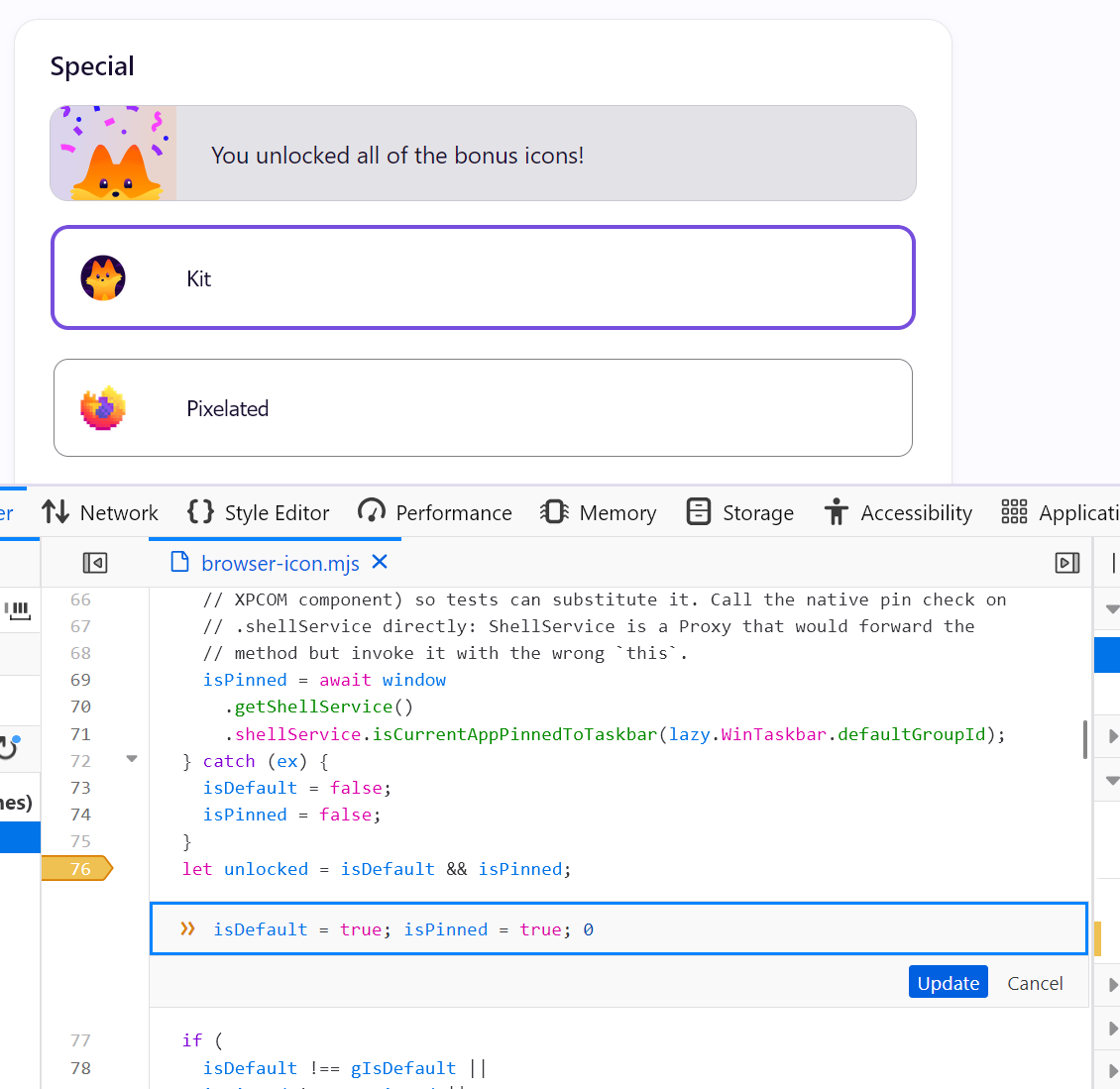
Refreshing the page, you’ll find that although the breakpoint did not pause the web page execution, the assignment statement still successfully unlocked the special icons.
Just like that, we successfully spent 10 minutes unlocking icons that originally only took 20 seconds to unlock by clicking two buttons! (And maybe another 20 seconds to change the default browser back to Chrome)
However, watching the process of AI solving the problem on its own, and trying it out firsthand, seems quite interesting. In my opinion, the scope of problems AI can solve is jointly determined by the its capabilities and the user’s own capabilities. As AI becomes stronger and stronger, I also hope I can catch up with its pace, making it a reliable tool for solving problems rather than a wishing machine.
Coxxs